Home Wi-Fi - what those numbers mean and how to fix them
How to read Wi-Fi indicators (RSSI, noise, channel, width, PHY), where interference comes from, and what actually improves the signal - and what doesn't.
The Wi-Fi panel on your laptop, or your router’s app, shows a dozen numbers: RSSI, noise, channel, PHY mode, NSS, Tx rate. Most people look only at the “bars”. But it is those numbers that tell you why the connection is slow and what to do about it. Let’s go through them, then cover interference and the fixes that actually work.
What the indicators mean
BSSID (the access point’s MAC). The hardware address of the specific router
radio, like a4:2b:.... If your home has several access points (mesh), each has
its own BSSID - it tells you which one you are actually connected to. Don’t
confuse it with the IP: the IP is assigned to your device, the MAC belongs to
the hardware.
RSSI - signal strength, in dBm. The value is negative, and the closer to zero the better:
| RSSI | State |
|---|---|
| −30…−50 dBm | excellent, you are next to the AP |
| −60 dBm | good, stable video and calls |
| −67 dBm | the threshold for reliable streaming / VoIP |
| −70…−80 dBm | weak: speed drops, disconnects |
| below −80 dBm | practically unusable |
Every −3 dBm is half the signal power. −60 is twice as bad as −57, even though the difference is “only” three units.
Noise - the noise floor, also in dBm. This is background radio junk from neighbouring networks and appliances. RSSI alone means nothing without noise; what matters is SNR (signal-to-noise ratio) - the gap between signal and noise. At RSSI −55 and noise −90, SNR = 35 dB, which is great. The same RSSI −55 at noise −70 gives an SNR of only 15 dB - and the speed collapses. Fast Wi-Fi is not a strong signal, it is a large gap between signal and noise. Anything above 25 dB is already good.
Channel and width. The channel is a slice of the spectrum. Channel width (20/40/80/160 MHz) is how much spectrum one connection occupies. Wider = potentially faster, but also more likely to overlap with neighbours (a separate section below).
PHY mode. The standard generation: 802.11n (Wi-Fi 4, up to ~300 Mbps),
ac (Wi-Fi 5, up to ~3.5 Gbps), ax (Wi-Fi 6, more efficient in dense
networks). An older mode is a lower speed ceiling regardless of signal strength.
NSS - spatial streams. How many independent data streams run at once (MIMO).
NSS 2 is potentially twice as fast as NSS 1, if both router and client
support it. A phone often has fewer streams than the router - and then the
client is the limit.
Tx rate. The real channel speed right now - dynamic, and it drops the moment RSSI or SNR worsen. Honester than “up to 1200 Mbps” on the box, but still not your internet speed: that is also capped by your provider’s plan.
MCS index. The “density” of data coding, from 0 to 11 (for Wi-Fi 6). A high MCS means a clean channel and a stable signal; it falls on its own when the air is noisy. It is the technical face of what SNR shows.
Ping (latency). Time to a reply, in milliseconds. Under 20 ms is ideal for gaming and video calls; 20–50 ms is fine for most tasks; over 100 ms means noticeable lag. Latency is unrelated to the “bars”: a weak signal hurts it, but even on a strong signal it rises on a congested channel.
Security. WPA2 is still acceptable, WPA3 is the current standard with a
stronger handshake (SAE instead of PSK) that does not yield to offline
brute-forcing of a captured handshake. WEP should not be used at all. If your
router supports WPA3, turn it on (in mixed WPA2/WPA3 mode while old devices
remain).
Where interference comes from
Physical obstacles absorb the signal differently:
- wood, drywall, glass - weakly;
- brick, water (an aquarium, pipes, even people) - noticeably;
- reinforced concrete and metal (doors, fridge, mirrors) - strongly, up to full shielding.
Every load-bearing wall between you and the router costs several dBm. So “a router behind two concrete walls, in a cabinet” is a classic cause of a weak signal.
Radio interference from other sources is the headache of the 2.4 GHz band: microwave ovens, Bluetooth, wireless mice and keyboards, baby monitors, old DECT phones. Plus neighbours’ networks: in an apartment block, dozens of access points fight over the same narrow spectrum - a scanner often shows 20–30 of them. This is the main reason for unstable internet in cities even with a good signal.
Two causes of a slow network that get confused:
- co-channel - you and a neighbour on the same channel: devices politely wait for each other and the speed is shared;
- adjacent-channel - you are on overlapping channels (e.g. 1 and 3): this is no longer taking turns but mutual noise, worse than co-channel.
That is why “pick a unique channel” is not always better than “join the same channel as a strong neighbour”.
What actually helps
Pick the right band. 5 GHz is faster and cleaner but passes through walls worse; 2.4 GHz is slower but reaches further. For the next room - 5 GHz; for a far corner through two walls - 2.4 GHz. Wi-Fi 6E/7 add 6 GHz - an almost empty band, but only for new devices.
On 2.4 GHz use only channels 1, 6 or 11. Only these do not overlap. Any other channel guarantees adjacent-channel noise. Choose whichever of the three has the fewest strong neighbours. A WiFi Analyzer app (Android) or the built-in tool on macOS shows channel congestion.
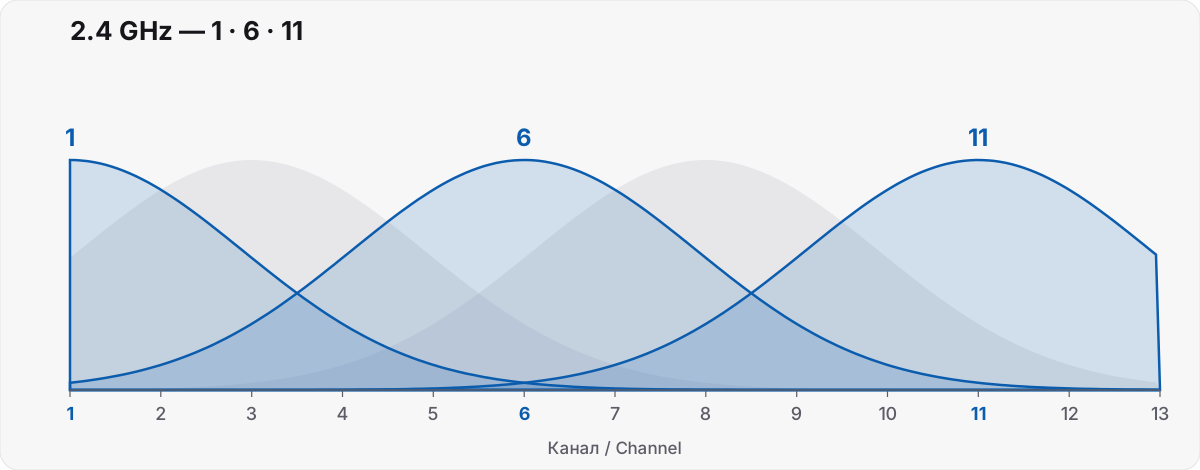
In blue - the three non-overlapping channels; in grey - an example of adjacent ones that overlap each other and create mutual noise.
A caveat about provider routers. Often you cannot change the channel or width at all: many providers (typical in the UAE, for one) hand out a router with locked settings. Then you are left with the band (ask for a 5 GHz SSID), placement, and cable - or your own router in bridge mode behind the provider’s.
On 5 GHz there are more channels, including DFS. DFS channels are often freer because cheap routers avoid them; the downside is the AP may “freeze” for a few seconds if a radar (airport, weather) is nearby. In a city they are usually worth it.
Placement matters more than antennas. Put the router out in the open, closer to the centre of the home and higher up (not behind the TV, not in a cabinet, not on the floor). One step from behind a wall into the open does more than replacing the router. Orient antennas vertically for coverage across a floor.
Channel width is a deliberate choice, not “more = better” (below).
Mesh, not a repeater. A classic repeater rebroadcasts the signal, halving the speed and creating a second network with the same noise. A mesh system uses a separate channel for the link between nodes (backhaul) and keeps a single network name with seamless roaming. For a large home, mesh is the right answer.
Cable for the critical. TV, desktop PC, game console, NAS - over Ethernet. Every device taken off the air frees it for the ones that are actually mobile.
Rebooting is not a myth, but not a cure either. A reboot clears a hung state and makes the router re-pick a channel - one-off help. If you need it daily, the cause is deeper (overheating, a weak power supply, outdated firmware).
20 or 40 MHz: when wider hurts
A wider channel fits more data per tick - but occupies more spectrum, so it overlaps with neighbours more often. Here hides the non-obvious rule.
The 2.4 GHz band. There are only three non-overlapping channels (1/6/11). 40 MHz effectively eats two of them - and in an apartment block you are guaranteed to hit your neighbours. In dense housing on 2.4 GHz, set 20 MHz. A wider channel gives you not more speed but more collisions, and real throughput drops.
The 5 GHz band. There are many channels and they are wider, so 40 or 80 MHz is justified - in a private house or wherever the air is relatively free. But even here: if there are dozens of 5 GHz networks around, a narrower channel with a stable connection beats a wider one with constant collisions.
A simple rule: a wide channel where the air is free (your own house, 5/6 GHz); a narrow one where it is crowded (apartment block, 2.4 GHz). Most routers have an “Auto” mode that copes fine; override it manually only when you feel instability in a dense area.
Takeaways
- Look not at the “bars” but at SNR - the gap between signal and noise. Speed lives there.
- On 2.4 GHz - only channels 1/6/11, and 20 MHz width in a city.
- Router placement matters more than the model; critical devices go over cable.
- For a large home - mesh, not a repeater.
- A wider channel helps only where the air is free; in a crowded band it hurts.